
What Data Do Apps Collect? A Privacy Checklist for Mobile Users
Most people care about privacy but rarely check app permissions, even though popular apps often request extensive data access. The good news: managing permissions is easier once you know which requests are normal and which go too far.

On this page
Most smartphone owners use 30+ apps per month, and each of them requires data access. Top apps, such as Instagram, Spotify, or Duolingo, request at least 10-15 permissions.
While most users say they care about privacy, nearly 60% admit that they pay little to no attention to permissions during installation. Moreover, 47% don’t make a point of regularly reviewing their privacy settings.
That’s exactly the paradox. We value our privacy. We also want our apps to work properly. But researching and handling all those data requests feels like uncharted territory. So we often just skip it.
In reality, everyone can take control of their permissions — without much effort each time a new app comes along. You just need to know what common access requests are, when they make perfect sense, and when they cross the line.
Why Mobile Apps Ask for Your Data
The 2024 cross-cultural study had some interesting results. The more data apps on the App Store collected from their users, the higher their ratings were. The reverse was equally true — the less invasive the application, the less data it collected, the lower its rating.
Of course, users reacted that way not to the permissions themselves. They evaluated the app’s overall functionality and level of personalization.
So, the first reason why apps collect data is just to function, perform better, attract users, and gain profits — pretty much like any other business or product. But it’s definitely not the only one.
There are more goals beneath the surface, such as:
- To make core features work. By default, apps are isolated and can’t use your data or hardware. So, if you want to post on Instagram, the application will need your permission to access the gallery/camera.
- To gather analytics data & prevent crashes. When the app crashes or performs poorly, the developers need to figure out what happened. That’s why device state, user session data, and network state are collected.
- To enhance personalization. Let’s say you want to order dinner. A food delivery app analyzes your location, nearby places, what people in your area order, and your order history. That’s how your recommendations include only the best options.
- To advertise. In free apps, you see ads. The application sends a request to an auction platform where companies place real-time bids to show you one ad or another. But those bids aren’t random. The app shares specific data to signal you’re a relevant customer. For example, services in the US won’t be shown to someone in the UK.
- To comply with legal requirements. Those vary greatly. For example, to use a healthcare app in the US, you’ll need to grant it permissions for authentication and storage. If that’s a children’s application, you’ll need to share some data as a parent and confirm your identity.
- To prevent fraud. Sometimes, your actions are tracked not to sell to you but to protect you. Apps may use resettable device identifiers (such as Google's Advertising ID or Apple's IDFV), biometrics, and camera access to verify that the person using the account is you.
As you can see, many permissions serve safety and functionality. However, some are more dangerous.
For example, we already have a case where the Federal Trade Commission took action against one of the advertising data brokers — you guessed it, for sensitive information disclosure. Aggressive, invasive marketing, even without direct third-party data selling, just doesn’t feel right, either.
All in all, it's all about balancing the right permissions. And the only way to do that is to understand how each type of access works.
Common App Permissions and What They Mean
So, the app installation doesn’t automatically give the software access to data and hardware. The app declares what it needs, and the system holds the gates. You decide which to open.
Here are the main categories of data or hardware most commonly requested:
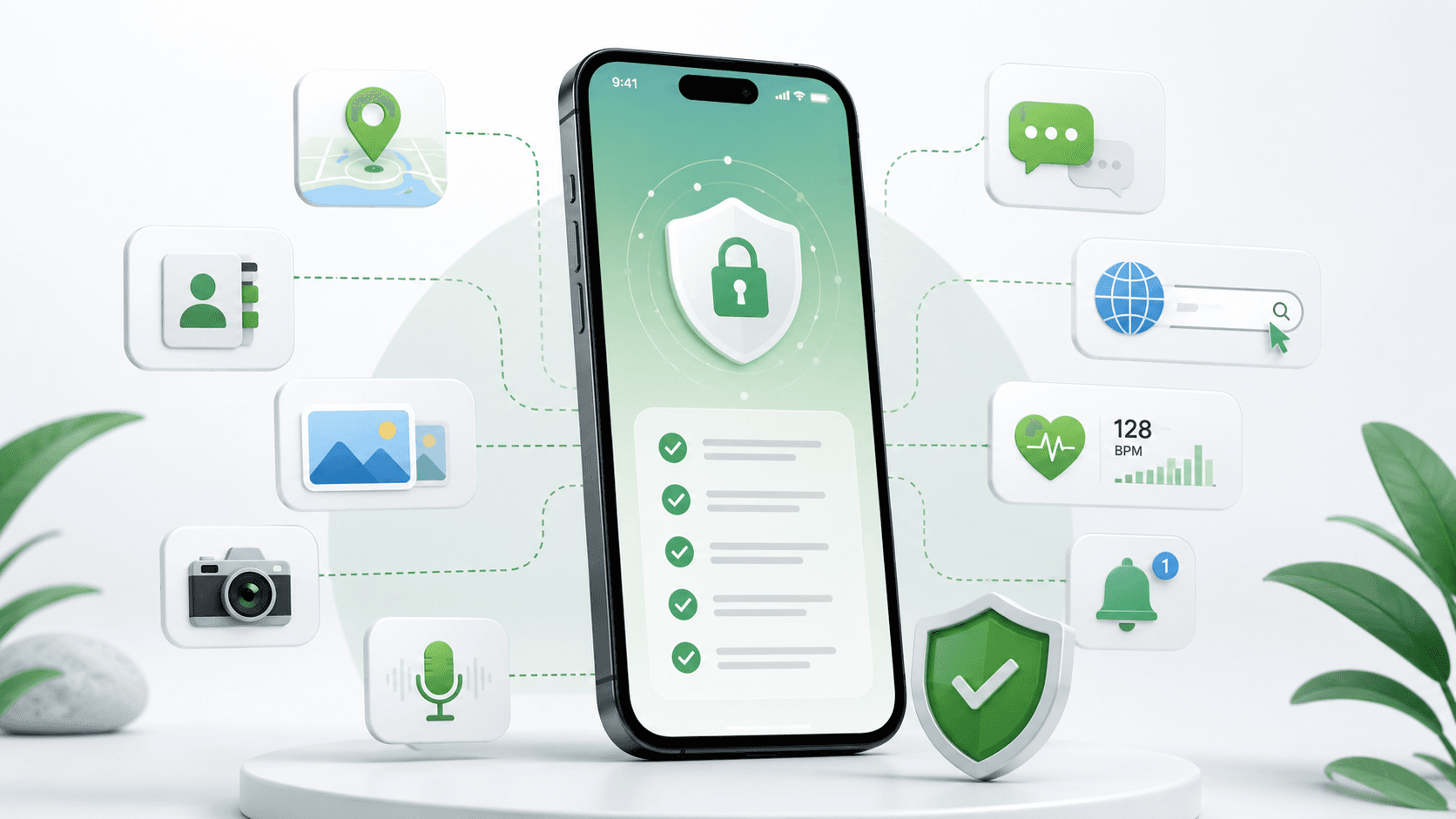
- Location: GPS, Wi-Fi positioning, connection to cell towers. Necessary for navigation, ride-sharing apps, and find-nearby features. Not necessary when your city or even region is enough, e.g., for a weather app or plant identifier.
- Camera: taking photos, recording videos, and streaming. Note that this doesn’t include access to photos in your gallery. However, when hardware access is granted, the app can hypothetically open any camera and control the shutter.
- Photos: your media library. There are 4 levels of access: Full, Limited, Add Photos, and None (called differently but the same on Android & iOS). Full access is 100% necessary only for backup applications like iCloud or Google Photos. For other apps, adding photos is enough.
- Microphone. Required for voice calls, video calls, voice memos, speech-to-text input, audio recording apps, voice assistants, etc. The most often denied permission, according to Google Research.
- Contacts: address book, phone numbers, names, emails. Apps may also access notes and birthdays. The exposure is wide and targets everyone who’s on your contact list as well. It’s also unnecessary unless you’re using a messenger. Even then, you can manually enter phone numbers without exposing your entire phonebook.
- Notifications: the persistent connection between your phone and the app's servers. Required by messengers, reminders, and alerts, but often over-requested by all other applications.
- Tracking: device activity and personal info across different apps and websites. This is an iOS-exclusive permission. You grant or deny it when you see the “Ask App Not to Track” pop-up after downloading the app. Only 12-18% of users grant this access, but some apps just don’t ask.
- Storage: photos, videos, or audio files on the device. Each app has its own private folder and doesn’t need additional permissions to store data there. This sandbox principle applies to both Android and iOS. Additional permissions are only needed to reach your existing media, for example, to upload a photo.
Permissions have tiers. For example, you can grant access to your precise location or approximate location, let the app see your entire gallery or only selected photos, etc.
Note that payment information is not a device permission. If you use Google Pay or Apple Pay, the data is transferred through PassKit / Google Pay API. In this case, the app has no access to your actual payment data.
What Data Apps Actually Need by Category
According to recent research, the most data-hungry categories are communication apps, productivity apps, and various tools. But again, permissions are what apps want to get — not always what they really need.
The chart below shows a few common app categories and what you should grant for functionality, not for data collection or advertising.
Category | Location | Camera | Photos | Microphone | Contacts | Notifications |
Navigation | ✅ | ⚠️ | ❌ | ⚠️ Optional | ❌ | ⚠️ Optional (Only for background warnings) |
Fitness | ⚠️ | ⚠️ | ⚠️ Optional (partial is enough) | ❌ | ❌ | ✅ |
Banking | ⚠️ | ✅ Necessary (ID verification) | ⚠️ | ❌ | ❌ | ✅ Necessary (Transaction alerts) |
Tools (e.g., Plant Identifier) | ⚠️ (approximate is enough) | ✅ | ⚠️ (Partial is enough) | ❌ | ❌ | ⚠️ Optional |
Social Media | ⚠️ (for geotags only) | ✅ | ✅ | ✅ | ⚠️ Optional (used to exploit data) | ✅ |
Shopping | ⚠️ (approximate is enough) | ⚠️ (only for barcode scans/visual search) | ❌ | ❌ | ❌ | ⚠️ Optional (For deliveries/discounts) |
Education | ❌ | ⚠️ (rare, for assignments) | ❌ | ⚠️ (for speaking exercises) | ❌ | ⚠️ Optional (For reminders) |
Again, these are general principles. A lot will depend on the specific app’s functionality and your expectations about the experience.
Case Study: Social Media App & Identification App
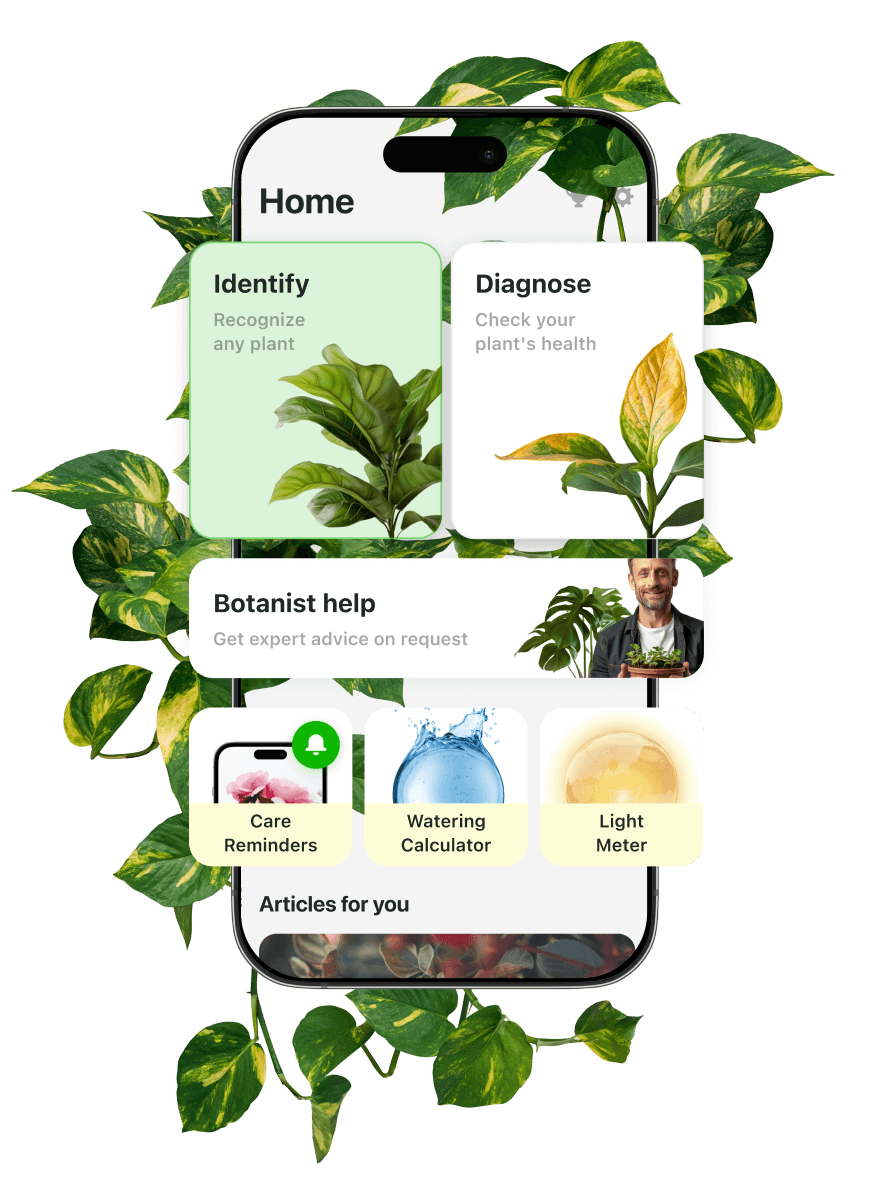
Let's step back from general principles and look at how permissions and privacy policies work, using examples from 2 specific applications across different categories. The first is the Instagram social media app, and the second is the Botan plant identifier.
Obviously, Instagram is a multifunctional app. Botan, in turn, is a plant identifier app with multiple features, all focused on identification, plant care and treatment, education, and expert advice.
Instagram is an example of an app that wants it all: it requests all main permissions. That includes camera, microphone, photos, location, contacts and accounts, calls, and more.
Aside from functional permissions, there are alarming ones: access to the background location, interception of phone calls, and activity recognition.

Botan also collects data from users, specifically device and geolocation data, personal information, camera, and photos. However, it’s more selective. Neither a microphone nor contacts are requested — they are not part of the app’s functionality.
Just like with Instagram, a user can set the level of access to their Gallery (full, limited, or none) and turn notifications on or off. Still, there’s another important thing to understand about the app: sharing camera images enables data transfer to Botan’s servers, to servers like FlowerChecker's (a natural & biological ID company), and to Botan’s AI system. That’s the core feature — the app is based on AI-powered recognition technology, but it’s worth keeping in mind. Also, unlike Instagram, Botan processes payments from premium users, but in this case, Google Pay and Apple Pay are the agents. Data isn’t disclosed.
Both apps allow you to delete data from the servers, but it can still be stored for up to 90 days.
So, the apps are quite different. Yes, Instagram is more invasive, but at the end of the day, you’ll need to check permissions for both. That’s the entire point.
Just consider the purpose. A plant identifier doesn’t need a microphone — if it had asked for it, that would be an immediate decline. A social media app doesn't need your background location. So, you should turn it off.
When App Permissions Become a Privacy Risk
Not all permissions are evil. But some are dangerous. Here are the situations that turn granting access into a privacy risk:
- The permission clearly doesn’t meet the app’s purpose.
- An application that has nothing to do with navigation is tracking your location in the background.
- Only full access to photos can be granted; there is no opportunity to share selected ones.
- The privacy policy is all the fine print. It’s written not to explain but to confuse.
- The Third Party section in the Privacy Policy is vague. No companies are named. No opportunity to track what companies may provide analytical or other services.
- An app keeps requesting new permissions despite offering no relevant new features.
- The camera or microphone indicator lights up when you're not using that feature.
So, the main rule is simple: think about why an app might need data or hardware, and if the answer is not clear, deny.
Privacy Checklist Before Installing an App
To ensure your privacy is protected, take the following steps:
- Check permissions before installation. They are shown on the App Privacy section on the App Store and the Data Safety section on Google Play.
- Don’t grant background access. Ensure all permissions are active only while using the application.
- Don’t enable access to precise location. The only exception is navigation tools.
- Read the Privacy Policy. Don’t try to think like a pro lawyer. See if it’s clear and reasonable. Check the Data Sharing/Third Parties section.
- Go to Settings after installation. Double-check all the permissions, deny the ones that seem unreasonable.
- Check if your data can be deleted. If there’s no opportunity to do that, it means that the company keeps your information forever.
- Delete apps you don’t use. There’s zero benefit, and you still keep sharing the information.
- Update your apps. Outdated applications may become vulnerable, and those vulnerabilities can be used to access previously shared data.
There’s another thing to remember. Apps can access GPS coordinates embedded in your photos if you grant full gallery access. Selecting photos instead is enough to keep your location data safe.
What Privacy-Friendly Apps Should Do
Forget marketing claims — here are the criteria that a safe application must actually meet:
- Provide an explanation of why the access is needed.
- Request only necessary, 100% functional permissions.
- Avoid asking for permissions upfront.
- Offer the minimum access level required for an app to function.
- Have a readable and transparent privacy policy.
- Give users real control over their settings.
- Allow an app to function even without non-essential permissions.
- Process data on-device when possible.
- Transmit data over HTTPS.
Neither users nor companies should underestimate the importance of transparency. It’s statistically proven that apps requesting permissions with clear explanations get much higher approval rates. A user sees a green flag. A company gets a loyal customer.
Final Thoughts
Around a decade ago, over 90% of US users reported feeling they had little or no control over their data. That’s an alarming statistic, and it doesn’t seem to have improved much since then.
But here’s the thing: it’s not exactly true. Every permission request is a question. Now you know how to answer it.
Alex Vakulov
Security Expert
20 years of experience in malware analysis
Alex Vakulov has spent over 20 years in the cybersecurity industry. He focuses on malware analysis, threat research, and helping organizations protect their data from evolving digital risks and DDOS attacks. He works as an independent cybersecurity consultant. Also, Alex has journalism experience and provides security publications, including Forbes.
His writing cuts through technical complexity. He turns research into findings and clear insights. Alex provides practical security recommendations that teams can implement without deep IT knowledge.
Related Articles
16 min read · 9 Sept 2026
11 Best AI Apps for iPhone in 2026: Top Picks for Every Need
Not every AI app deserves space on your iPhone. This guide covers 11 of the best AI tools, from chatbots and writing assistants to image editors and plant care apps. All are compared across features, pricing, and use cases.

10 min read · 3 Sept 2026
12 Best Green Apps for a More Sustainable and Eco-Friendly Lifestyle
Discover 12 sustainability apps that target specific daily habits, from what you eat and wear to how you travel and how you care for plants. Learn to make small yet consistent daily choices that add up to a real environmental impact.
10 min read · 28 Aug 2026
12 Best Gardening Apps of 2026 for Planning, Plant Care & More
We’ve chosen and tested 12 plant apps that offer the best functionality for gardeners. Below, you’ll see which features they offer, how much they cost, and what their key pros are. Match each to your priorities to choose the best option.
Explore Technical Sides of Apps








Identify the plant and problem. Help your plant recover
Identify plant problems early, understand what's wrong, and get clear care guidance. Botan helps you turn guesswork into confident plant care